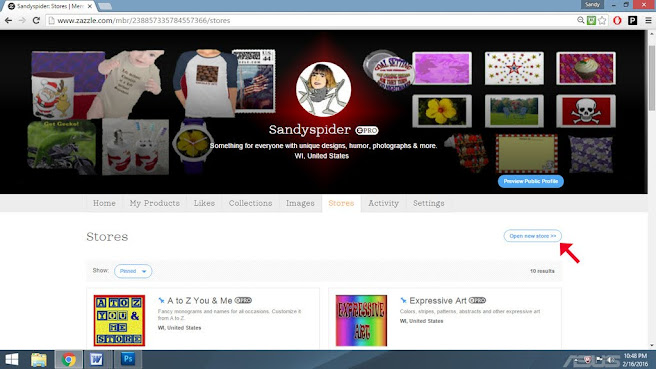
My name is Sandy Mertens and I am a Silver Zazzle ProDesigner. Zazzle is a custom print-on-demand online shop where creators have their own stores. The Zazzle website evolved over the years from when I first joined. The designer tools were simple and basic. The customer could only edit the image and text if you (the creator) checked the box when posting the new product. There was no "Personalize this template" pulldown. To get an idea of simple and basic, look at Fabrics on Zazzle of how the design tool is. This was how it had been for other products. Fabrics editing has not changed.

by Sandyspider
More Fabric is available within these two collection pages.
Fabric by Sandy M Designs & Giftsyoucreate
Anyone not familiar with Zazzle and reading this, the online shopping store has over 300 different product types. Cards, clothing, home decor, office, school products, electronics, and more.
The Question
Anyone not familiar with Zazzle and reading this, the online shopping store has over 300 different product types. Cards, clothing, home decor, office, school products, electronics, and more.
The Question
Recently, I was asked a question by another Zazzle creator. Her question was if she made an improvement on a design and made that change in Edit, if she should delete the older product, losing any likes, views, and purchase stats.
My answer to any storekeeper (Zazzle creator) is if your product listing has any positive stats, never delete it. You shouldn't delete it if you have promoted it on various social media outlets.
For a spelling error, a slight design defect, an image that needs an adjustment, or something that will not make too much of a change, make those changes and click on the "Replace Product" button. As the creator, you then click on "Submit Revision." Approval may take less than 24 hours to weeks. Therefore, I would not recommend doing this on a Valentine's Day card when Valentine's Day is only weeks away.
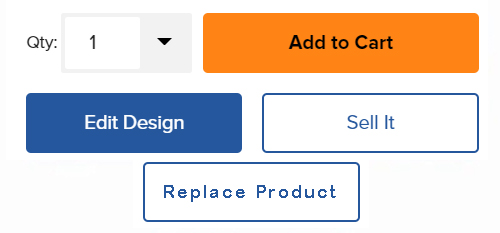

From my own experience, it has to be a slight change to be approved by Zazzle when clicking on the "Submit Revision" button.
(Now, if it is a grammar error and Zazzle does not approve the change, you have no other option than to make a new corrected product and delete the old one.)
(Now, if it is a grammar error and Zazzle does not approve the change, you have no other option than to make a new corrected product and delete the old one.)
Before the "Replace Product" button existed, I republished many products, deleting the older products. Doing this affected my ZRank by decreasing my stats.
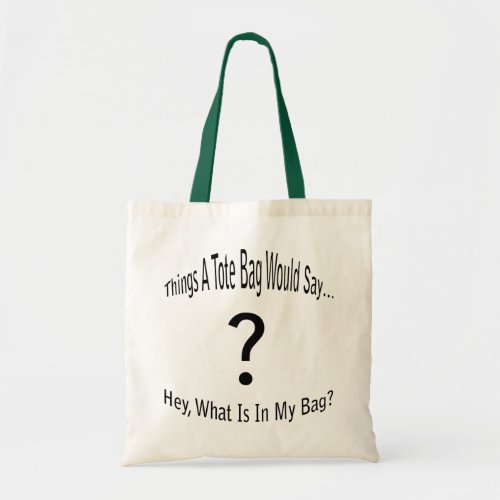
The pencil/pen holder shown above is one product I have republished twice now, using the "Replace Product" button. Easier for the customer to add their photos with the Personalize this template pulldown. Valentine's gift for an office.
The pencil/pen holder shown above is one product I have republished twice now, using the "Replace Product" button. Easier for the customer to add their photos with the Personalize this template pulldown. Valentine's gift for an office.

Replace Product for Zazzle Approval Video
When I started my Youphotoit store, I wanted my custom photo store to be different than the other shopkeepers. I wanted to include unique graphics so the customer could add their photo to that design.
I can make my older products easier for the customer without a subtle visual change. This video will show how simple it is.
Watch Video on Youtube for the Largest View
That is it. Has this helped?
Comments on this blog and on the Youtube video are appreciated.